Protection system through the access code
One of the most important and strong ways to protect the account from theft is to link the account login with sending code automatically to email and / or mobile.
In addition to the user name and password, this method is the most used by all international companies to protect the customers from stealing their account or logging it illegally.
How does this system work?
This system to ensure that no one can log into HESABATE account without the user’s consent.
This system send a code (random numbers) as an SMS for the mobile user who was registered first time and / or an email.
The program will not allow any person, whatever and in whatever way, to enter the program without entering the code that sent via email and / or mobile during login process.
How to activate passcode protection?
It is important for the user to have his own account on the SMS website http://sms.mms.ps/ that linked to HESABATE program for sending short messages through it. To learn how to activate the short message service, see the following link
http://hesabate.com/hesabatehelp/#sms.html
Once you activate an account on the SMS message and link it to the HESABATE program, you have completed the first step, knowing that this system can work without the need to activate the SMS system so that the code sent to the user's email only.
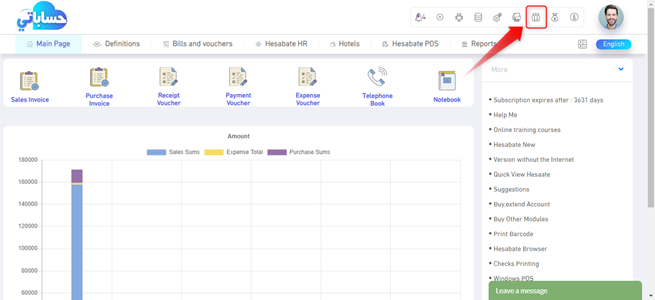
After activating the short message system (optional), go to the users and privileges screen as shown in the following image:
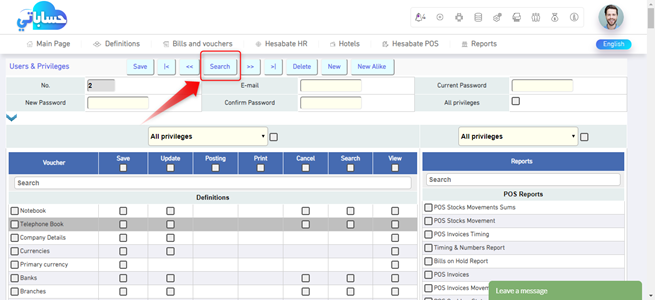
After opening users and privileges screen, choose the user whom you want to activate this protection for his account by pressing a search and selecting the user as in the following image
After selecting the user:
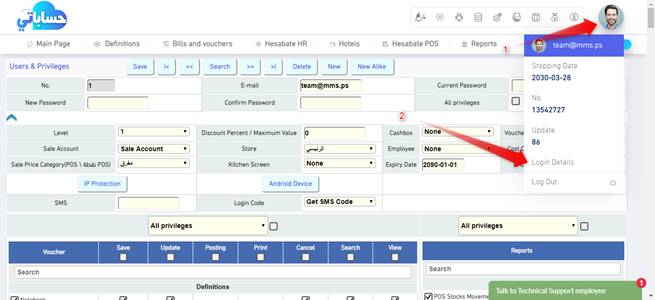
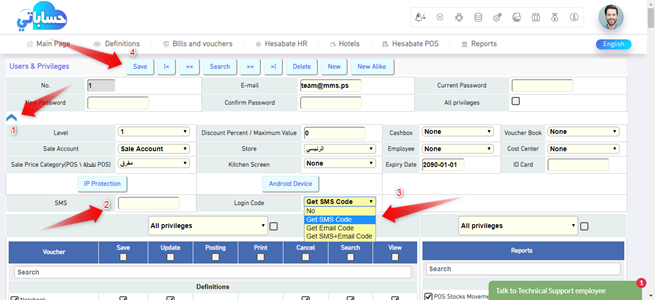
1- Open the additional options for the users screen by clicking on the blue arrow and
2- Then activate this system through the (login code) field by choosing the way you want the system to send the activation code through it
3- Enter the mobile number that you want to reach Activation code.
4- Pres Save button
Exit the program and log in again. A screen will appear for you after entering the username and password asking you to enter the code that sent to your mobile number
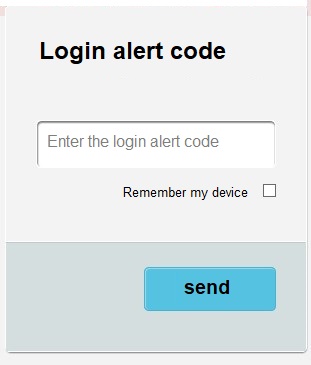
Enter the code you received via SMS or email and press send to log in.
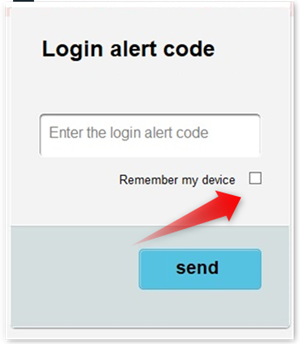
You can save the browser that you entered through the program not to prompt you to activate the code again when you log in from the same browser and the same device by selecting the option (Remember my device).
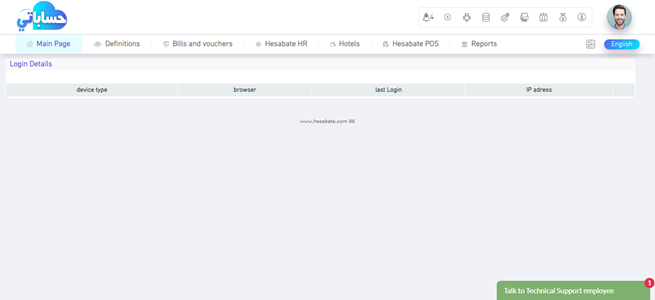
You can also see all devices and browsers that you log in to the program through and delete any of them through the (login details) screen, which you find in the user information in the toolbar